
Before purchasing an Agisoft Metashape license—or before starting a major project—it’s worth confirming that your computer is up to the task. Metashape is demanding software: processing hundreds of high-resolution photos requires a suitable combination of RAM, CPU, GPU, and storage. This guide explains exactly what hardware you need depending on the type of projects you plan to undertake.
Official system requirements
These are the requirements officially published by Agisoft:
| Component | Minimum configuration | Recommended settings |
|---|---|---|
| Operating system | Windows 7 SP1 (64-bit) / macOS High Sierra / Debian-Ubuntu with GLIBC 2.19+ | Windows 10/11 (64-bit) / macOS Mojave or later |
| Processor | Intel Core 2 Duo or equivalent | Intel Core i7 or AMD Ryzen 7 (3.0+ GHz) |
| RAM | 8 GB | 32 GB |
| GPU | — | NVIDIA or AMD dedicated (4+ GB VRAM) |
| Storage | — | SSD (for project files and images) |
The minimum settings are only suitable for small projects of up to 50–100 images. For real-world professional projects, the recommended settings are the starting point, not the limit.
Why hardware matters so much in Metashape
Unlike many programs where hardware has a moderate impact on the experience, in Metashape the hardware directly determines :
- The maximum project size you can process (mainly RAM)
- Processing speed (CPU and GPU)
- Stability during long sessions (temperature and storage)
A project that takes 2 hours on a high-end workstation can take 12 hours on a basic computer, or simply not finish due to lack of memory.
RAM: the most critical component
RAM is the most important component when building dense point clouds, depth maps, and high-resolution meshes. It doesn’t affect processing speed, but it defines the maximum project size you can process in a single chunk.
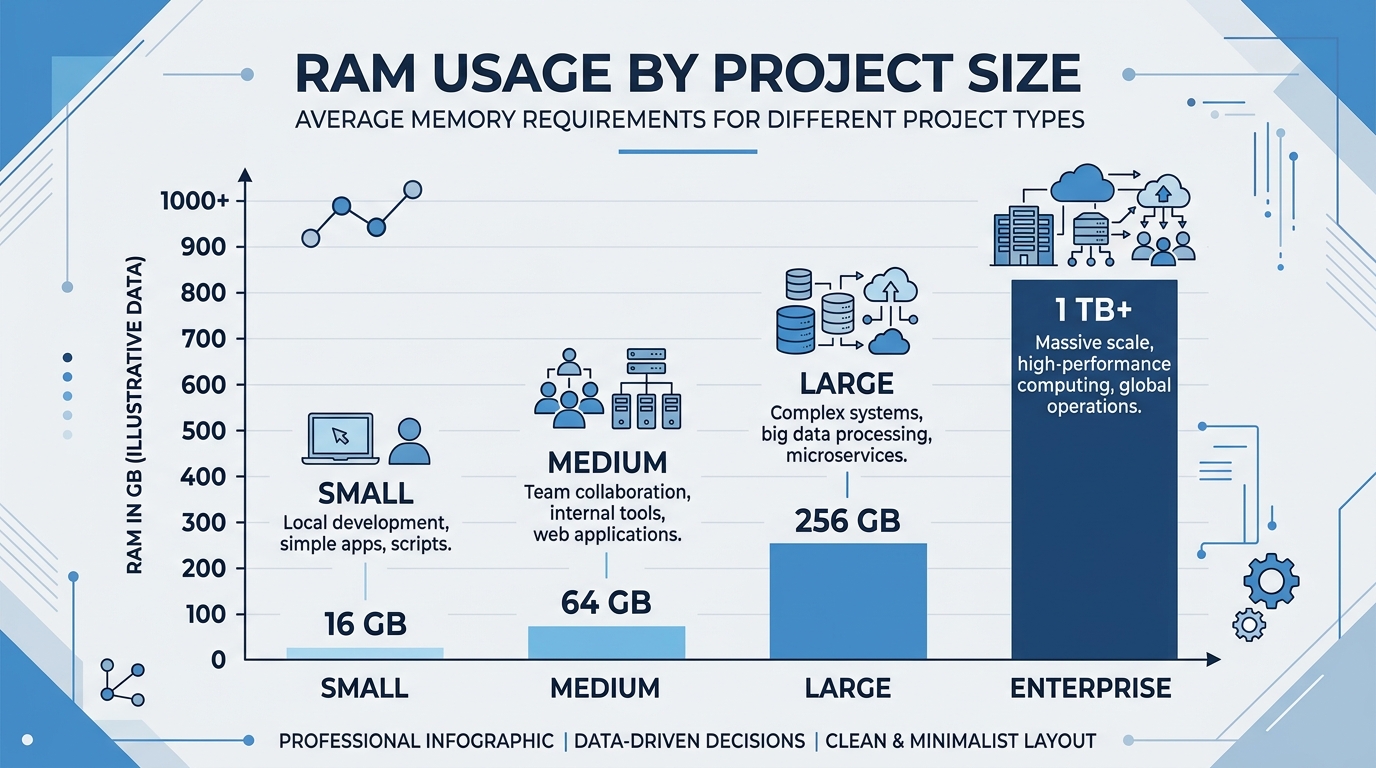
How much RAM do you need for your project?
| Project type | Number of photos | Recommended RAM |
|---|---|---|
| Small projects (objects, interiors) | Up to 200 photos at 12 MP | 16 GB |
| Medium-sized projects (buildings, plots of land) | 200–800 photos at 20 MP | 32–64 GB |
| Large projects (extensive flights, mapping) | 800–2,000 photos | 64–128 GB |
| Very large projects (massive missions) | 2,000+ photos | 128 GB or more |
For most common processing operations, 32 GB of RAM is sufficient, but 64 GB is recommended for added security, in case an extra-large project needs to be processed.
Important tip: RAM frequency doesn’t significantly affect speed. What matters is the amount. Prioritize more GB over higher speed when choosing modules.
📷 Image ideas (AI):
- Visual bar chart comparing RAM consumption according to project size (small/medium/large), technical infographic style with dark background.
- Render of RAM modules installed on a motherboard, technical photorealistic style.
CPU: Speed and cores in balance
The processor is involved in all stages of the workflow. Some stages take advantage of many cores (dense cloud generation), while others rely on the speed of a single core (intermediate stages of Bundle Adjustment).
CPUs with 6 to 32 physical cores with the highest possible base frequency (at least 3.2 GHz) are generally recommended as the optimal desktop solution for processing in Metashape.
One key fact that surprises many users: processors with very high core counts do not scale efficiently in Metashape, making mainstream CPUs the sweet spot.
Recommended processors in 2025–2026
| Segment | Intel | AMD |
|---|---|---|
| High-end | Intel Core Ultra 9 285K | AMD Ryzen 9 9950X |
| Mid-to-high range | Intel Core Ultra 7 270K | AMD Ryzen 9 9900X |
| Professional workstation | Intel Xeon W (for 128+ GB RAM) | AMD Threadripper PRO (massive projects) |
Using Metashape without a dedicated GPU is not recommended . Metashape supports CPU-only processing, but stages that support GPU acceleration will take considerably longer, so using systems without a GPU for processing operations is not recommended.
📷 Image ideas (AI):
- Intel or AMD processor on a motherboard, photorealistic render with dramatic lighting, dark background.
- Bar chart comparing processing speed according to number of cores (illustrative, not real data).
GPU: acceleration in key stages
The GPU is especially important in the following stages of the flow:
- Image Matching (Part One of Aligning Photos)
- Calculation of depth maps (based on dense point cloud)
- Depth-based mesh generation
- Mixture of textures
High-end gaming graphics cards are generally recommended. Professional-grade cards are also supported, but they are generally not a reasonable value in terms of performance, since Metashape does not use double-precision computing.
Which GPU should I choose?
When comparing GPUs for Metashape, the two most important factors are:
VRAM: More VRAM allows for processing larger projects on the GPU and displaying more detailed models smoothly. Minimum recommended: 8 GB. For large projects: 16–24 GB.
TFLOPs (single precision): measures the computing power of the GPU. A higher value indicates faster performance in GPU-accelerated stages.
| Segment | NVIDIA | AMD |
|---|---|---|
| High-end | RTX 4080 / RTX 4090 | RX 7900 XTX |
| Mid-range | RTX 4070 / RTX 3080 | RX 7800 XT |
| Recommended minimum | RTX 3060 (12 GB) | RX 6700 XT |
| Avoid | Integrated GPUs (Intel Iris, AMD Radeon Integrated) | — |
Multi-GPU? Metashape supports multiple GPUs. If you use two cards, ideally they should be from the same manufacturer and have no more than twice the TFLOP difference between them.
Mac with Apple Silicon? Metashape offers native support for Apple Silicon (M1, M2, M3, M4), including GPU acceleration. The M3 Pro and M4 Max chips offer very competitive performance for medium-sized projects.
📷 Image ideas (AI):
- NVIDIA RTX GPU with blue/green light effect, photorealistic technical render style, dark background.
- Visual comparison of two systems: basic laptop vs. desktop workstation, with processing speed indicators.
Storage: SSD is required
During processing, it is recommended to store Metashape project files (including source images) on an SSD. Using a conventional HDD can significantly increase read/write times during processing and create bottlenecks.
Recommended storage configuration
| Unit | Guy | Ability | Use |
|---|---|---|---|
| Major | NVMe SSD (M.2) | 1 TB minimum | Operating system + Metashape installation |
| Projects | NVMe SSD or SATA SSD | 2 TB+ | Source images and active project files |
| Archive | HDD or NAS | 4 TB+ | Completed projects and support |
A medium-sized project of 500 photos at 20 MP can generate between 10 and 30 GB of project files. Keep this growth in mind when sizing your storage.
📷 Image ideas (AI):
- NVMe M.2 SSD on a dark technological background with circuits, photorealistic render.
Summary: three configurations according to type of use
Basic settings — Small projects (up to 200 photos)
- CPU: Intel Core i5 / AMD Ryzen 5 (6 cores, 3.0+ GHz)
- RAM: 16 GB DDR4
- GPU: NVIDIA RTX 3060 (12 GB VRAM) or equivalent
- Storage: 512GB SSD system + 1TB SSD for projects
Recommended settings — Medium projects (200–800 photos)
- CPU: Intel Core i7 / AMD Ryzen 7 or Ryzen 9 (8–16 cores, 3.5+ GHz)
- RAM: 32–64 GB DDR5
- GPU: NVIDIA RTX 4070 / RTX 4080 (12–16 GB VRAM)
- Storage: 1 TB NVMe SSD system + 2 TB NVMe SSD projects
Workstation setup — Large projects (800+ photos)
- CPU: Intel Core Ultra 9 285K / AMD Ryzen 9 9950X (20–24 cores, 3.7+ GHz)
- RAM: 64–128 GB DDR5
- GPU: NVIDIA RTX 4090 (24 GB VRAM) or 2x RTX 4080
- Storage: 2TB NVMe SSD system + 4TB NVMe SSD projects + HDD archive
One point that is often overlooked: the cooling system
It’s very important to pay attention to the computer’s cooling system. Since processing can take a long time and heat the components considerably, it’s essential that the computer has a good cooling system. Confirm that the CPU temperature under heavy load does not exceed 80–90 °C.
This is especially relevant on laptops: many devices thermally throttle (automatically reducing performance to avoid overheating) during long processing sessions, which can double the times.
Are you unsure whether your device is compatible?
The quickest way to find out is to download the free 30-day trial of Agisoft Metashape and run a small test project. Agisoft provides sample datasets on its official website for this purpose.
If your team passes the test easily, you have everything you need to work. If you encounter bottlenecks, this article provides a roadmap to help you determine exactly which components to prioritize when upgrading.
At Aufiero Informática , official distributors of Agisoft Metashape in Argentina, we can advise you on both the license and the most suitable hardware configuration for your workflow.
👉 View Agisoft Metashape licenses at Aufiero Informática
Frequently Asked Questions
Can I use Metashape on a laptop?
Yes, but with limitations. Gaming or workstation laptops (Dell Precision, HP ZBook, Lenovo ThinkPad P-series) with a dedicated GPU and 8+ GB of VRAM work well for medium-sized projects. Ultra-thin or office laptops are not suitable for intensive processing.
Does Metashape work on Mac?
Yes. Metashape is compatible with macOS and offers native support and GPU acceleration for Apple Silicon M1 through M4 chips. Mac Studios and MacBook Pros with M3 Pro/Max or M4 Pro/Max processors are very competitive options for professional use.
Does the GPU have to be NVIDIA?
No. Metashape supports both NVIDIA (CUDA) and AMD (OpenCL) GPUs. NVIDIA GPUs usually have a slight advantage due to the maturity of the CUDA ecosystem, but modern AMD GPUs also work well.
What happens if I run out of RAM mid-processing?
Metashape will try to use storage as virtual memory, which greatly slows down processing. In extreme cases, the process will crash. The solution is to split the project into smaller chunks or increase the amount of RAM.
Is it worth investing in a professional GPU (NVIDIA RTX 6000, Quadro)?
Generally, no, for Metashape. Professional GPUs are optimized for double-precision computing, which Metashape doesn’t utilize. A gaming-grade RTX 4090 offers better performance at a lower cost for this specific software.